

Steps to set up SCIM with Okta
Set up the password policy (password should contain at least one number and one symbol), if using the Classic Engine on Okta follow the below steps, or if using the OIE engine,follow the steps as mentioned in this Okta guide.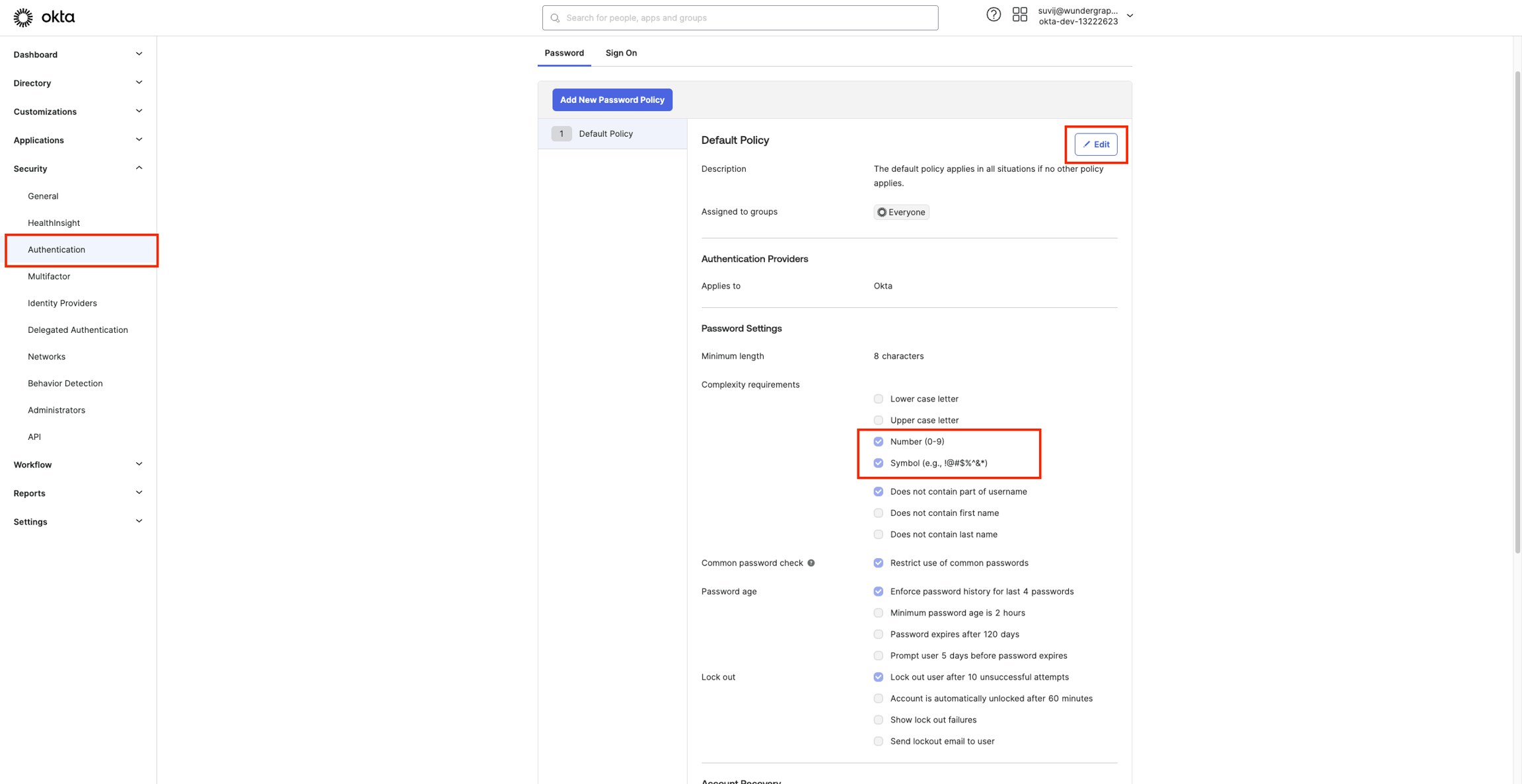
- Navigate to Security -> Authentication on your Okta Administrator Dashboard.
- Click Edit and update the password policy by enabling Number and Symbol, then click on Update Policy.
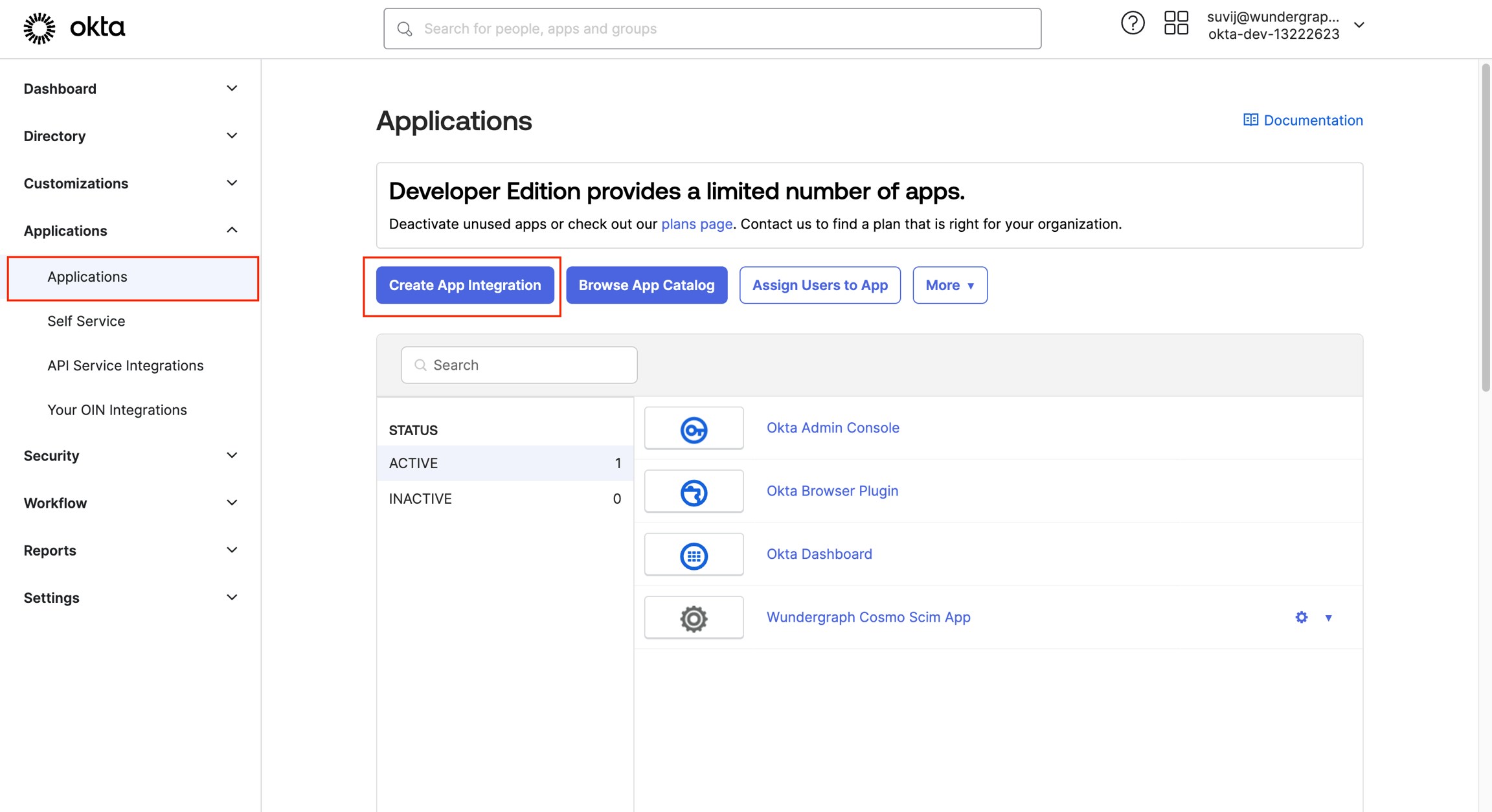
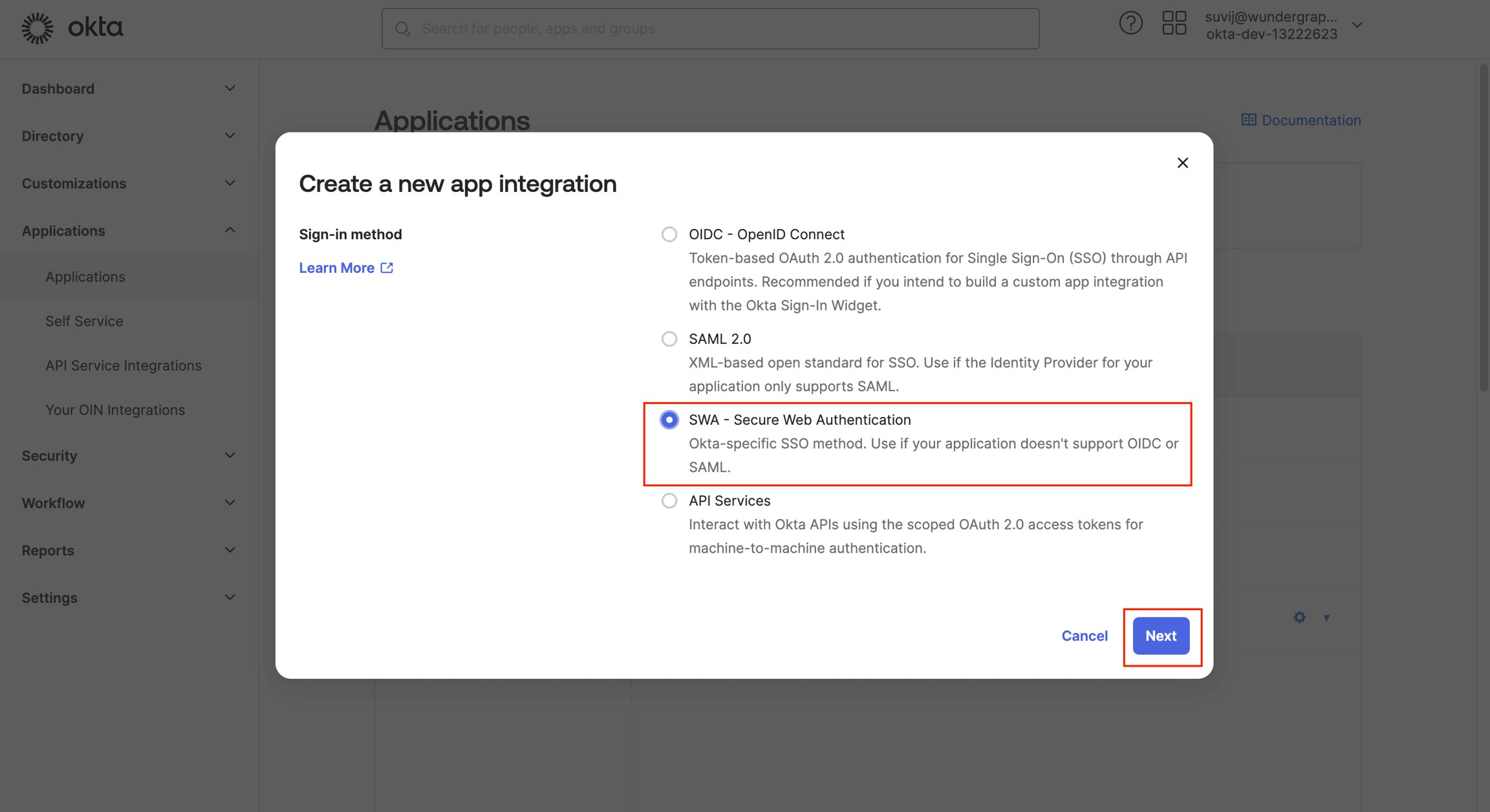
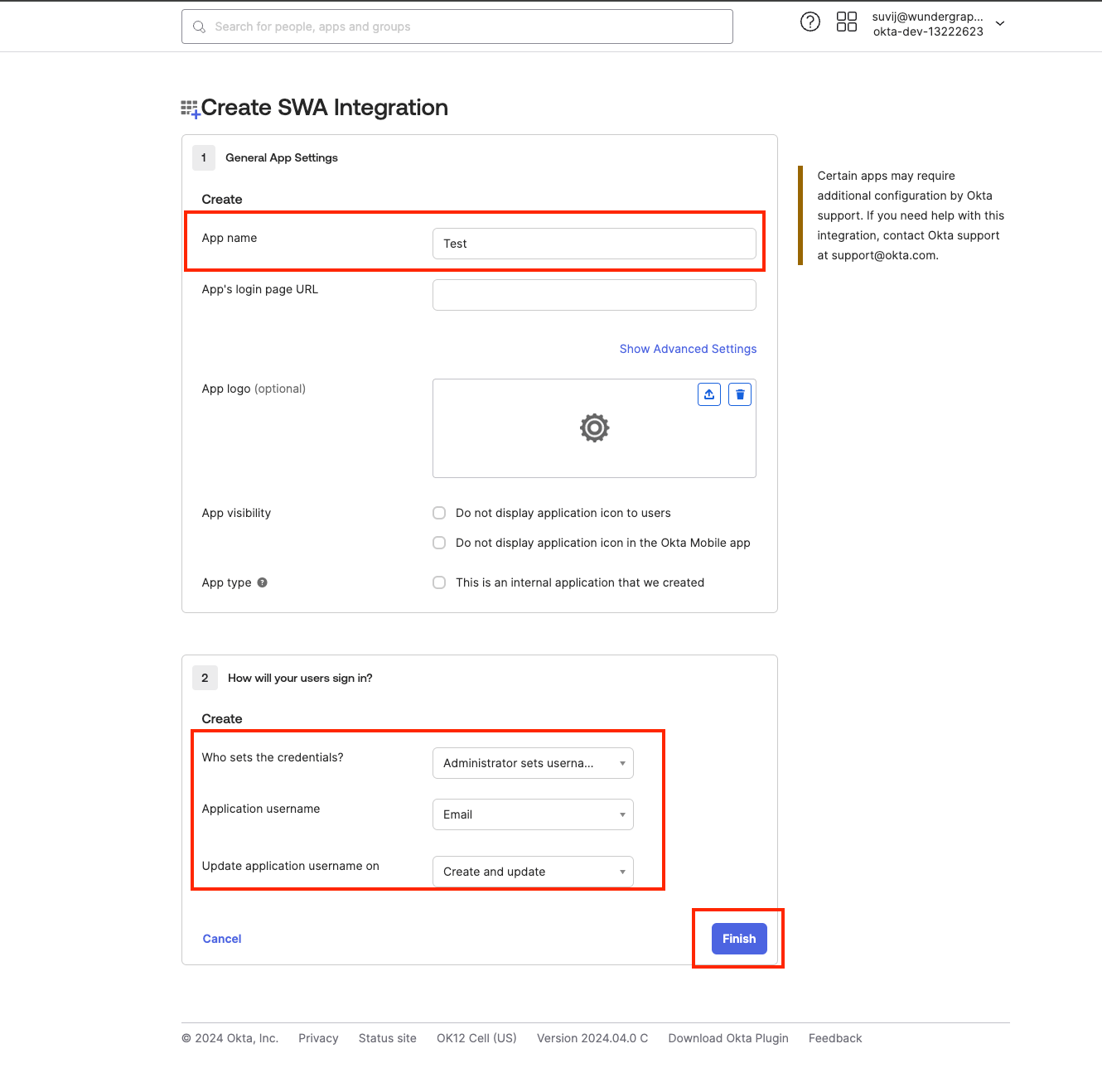
Now give the app a name and populate the app’s login URL with https://cosmo.wundergraph.com/login.
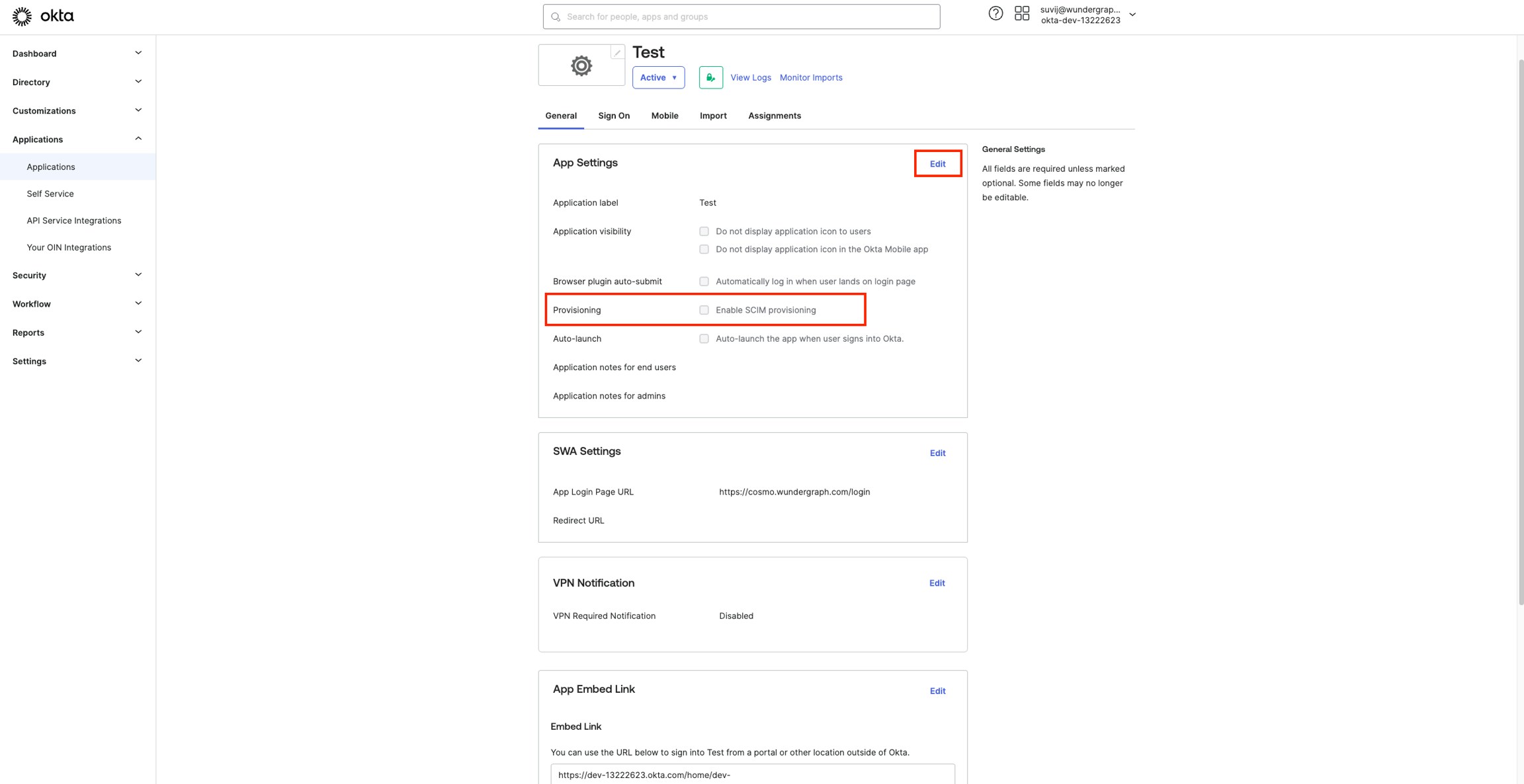
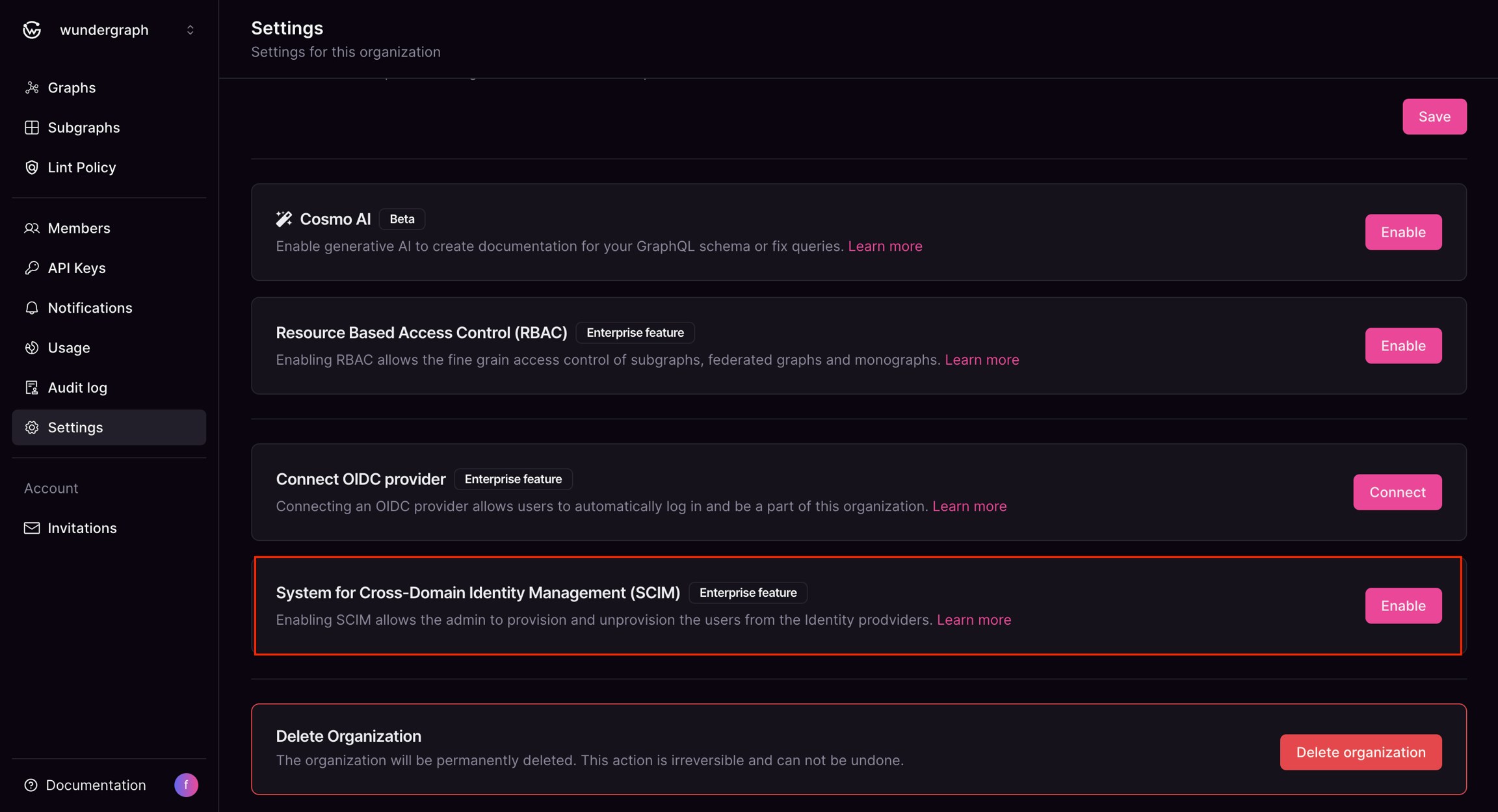
Provide the key with a name, select Never for Expires, then select SCIM under Permissions, then click on Generate API key.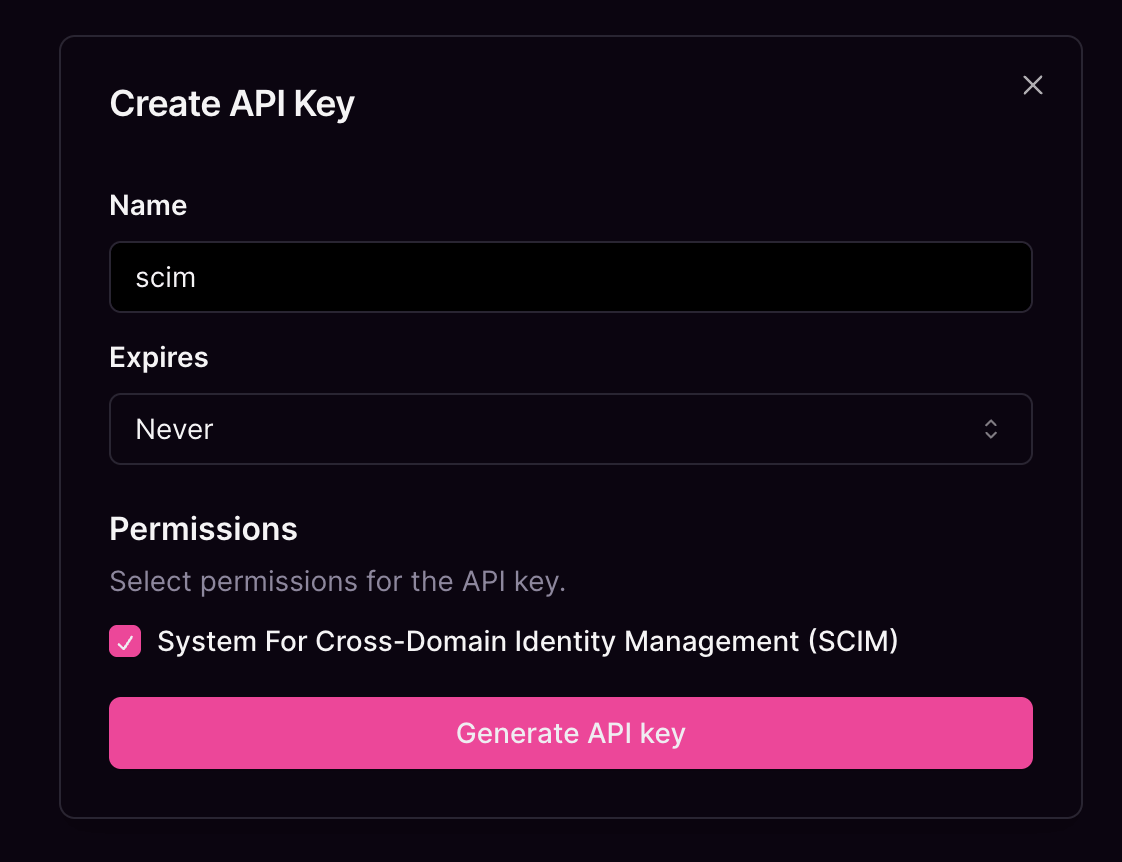
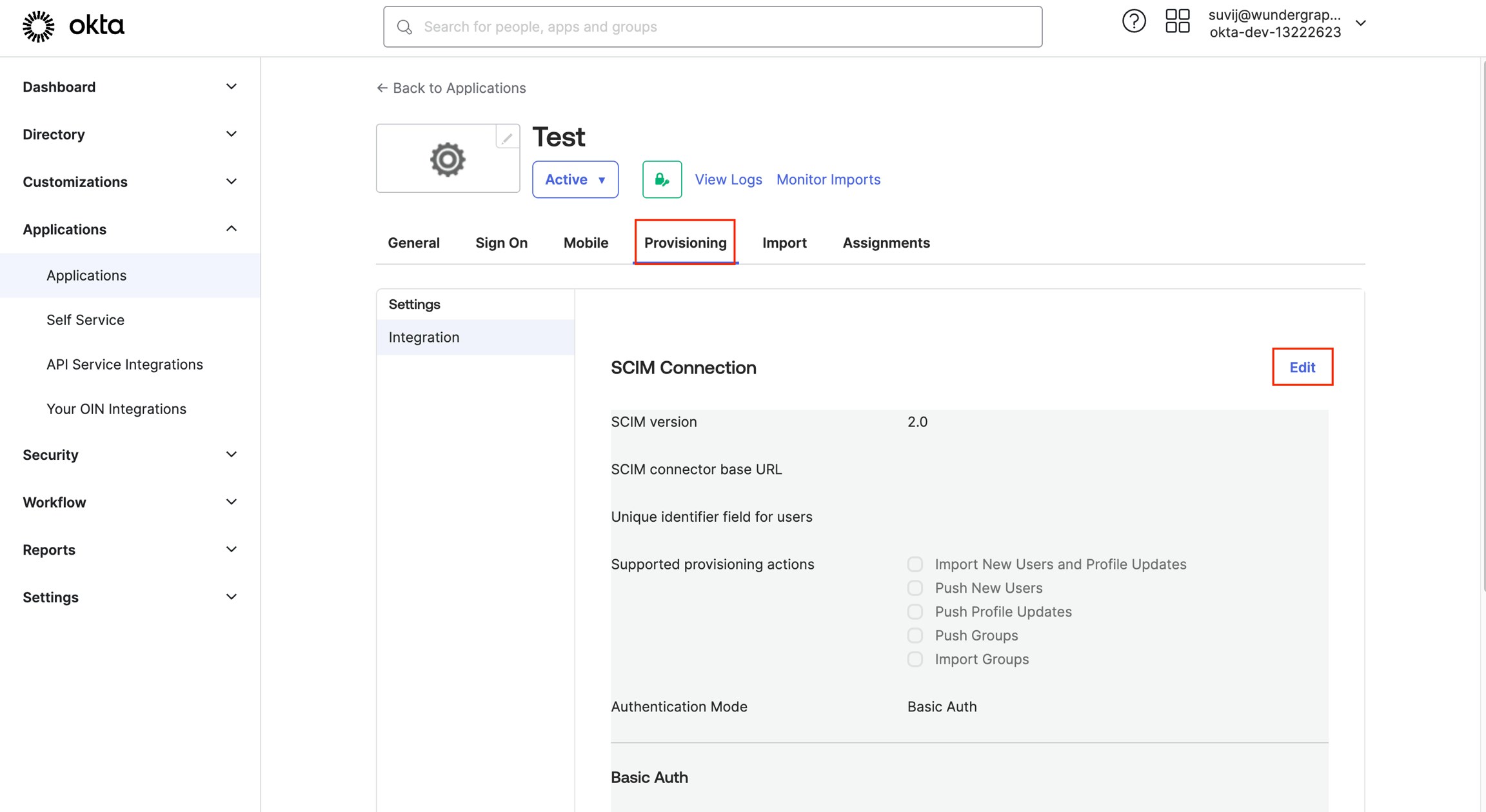
Select Import New Users and Profile Updates, Push New Users and Push Profile Updates for Supported provisioning actions.
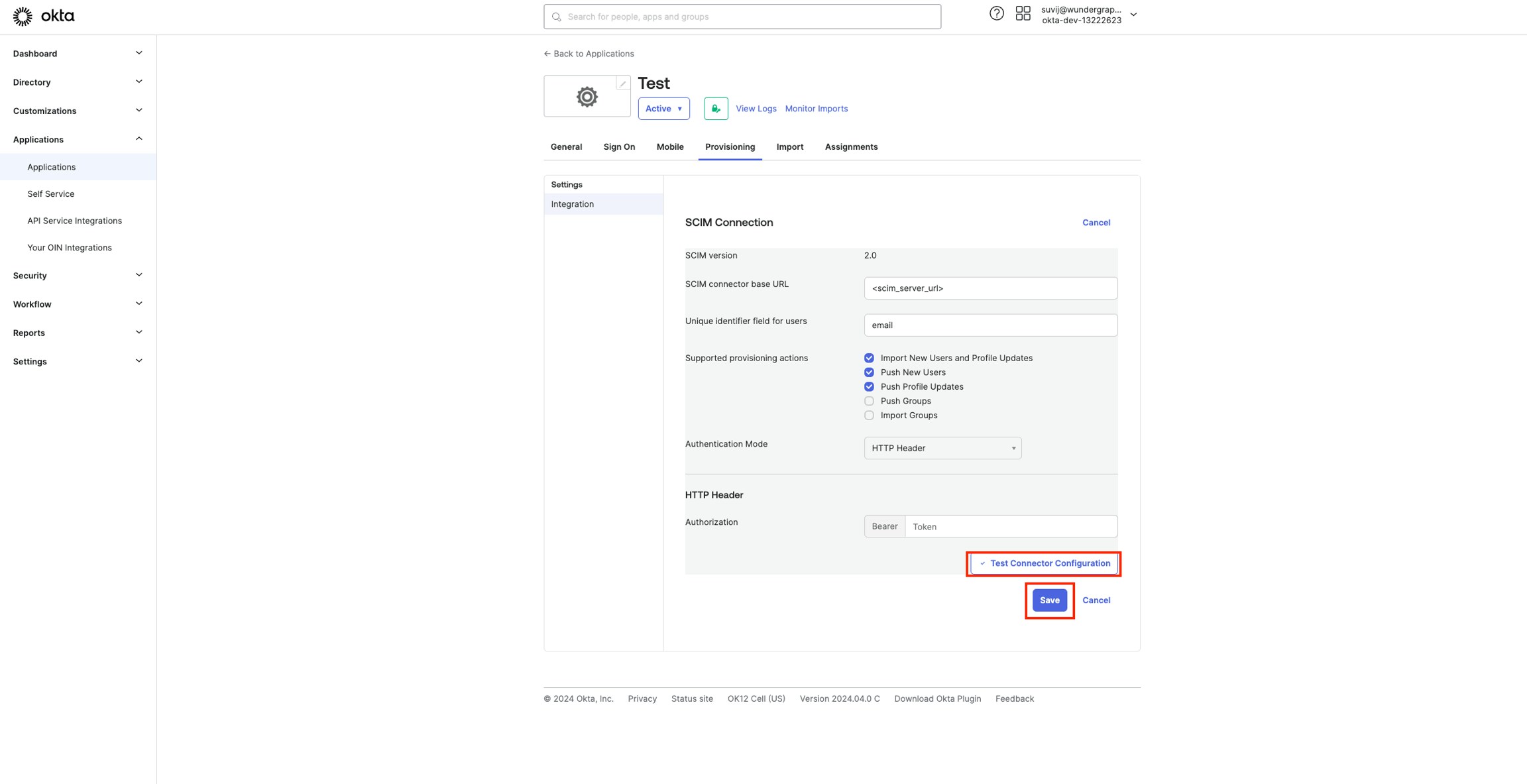
Click on Test Connector Configuration, a dialog will appear showing the connector is configured successfully, click Close.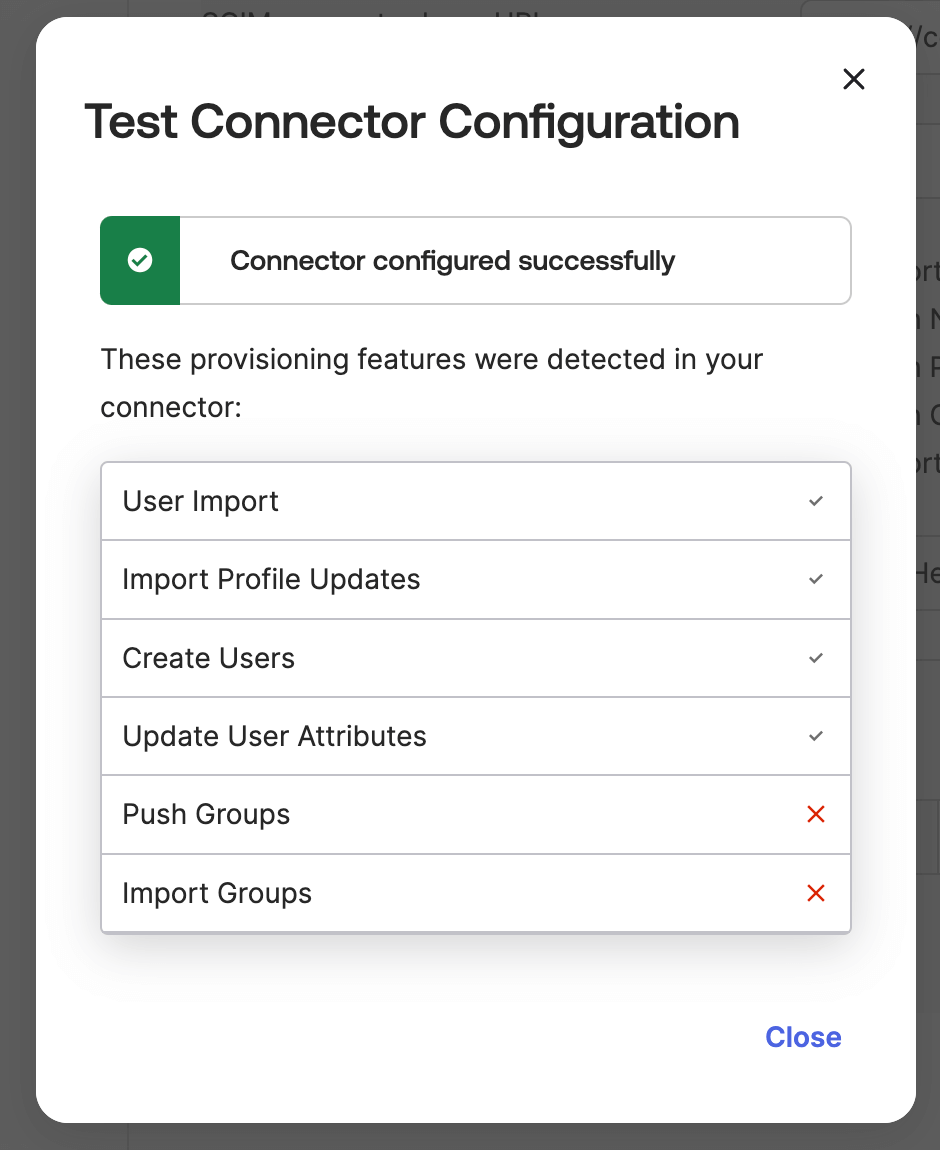
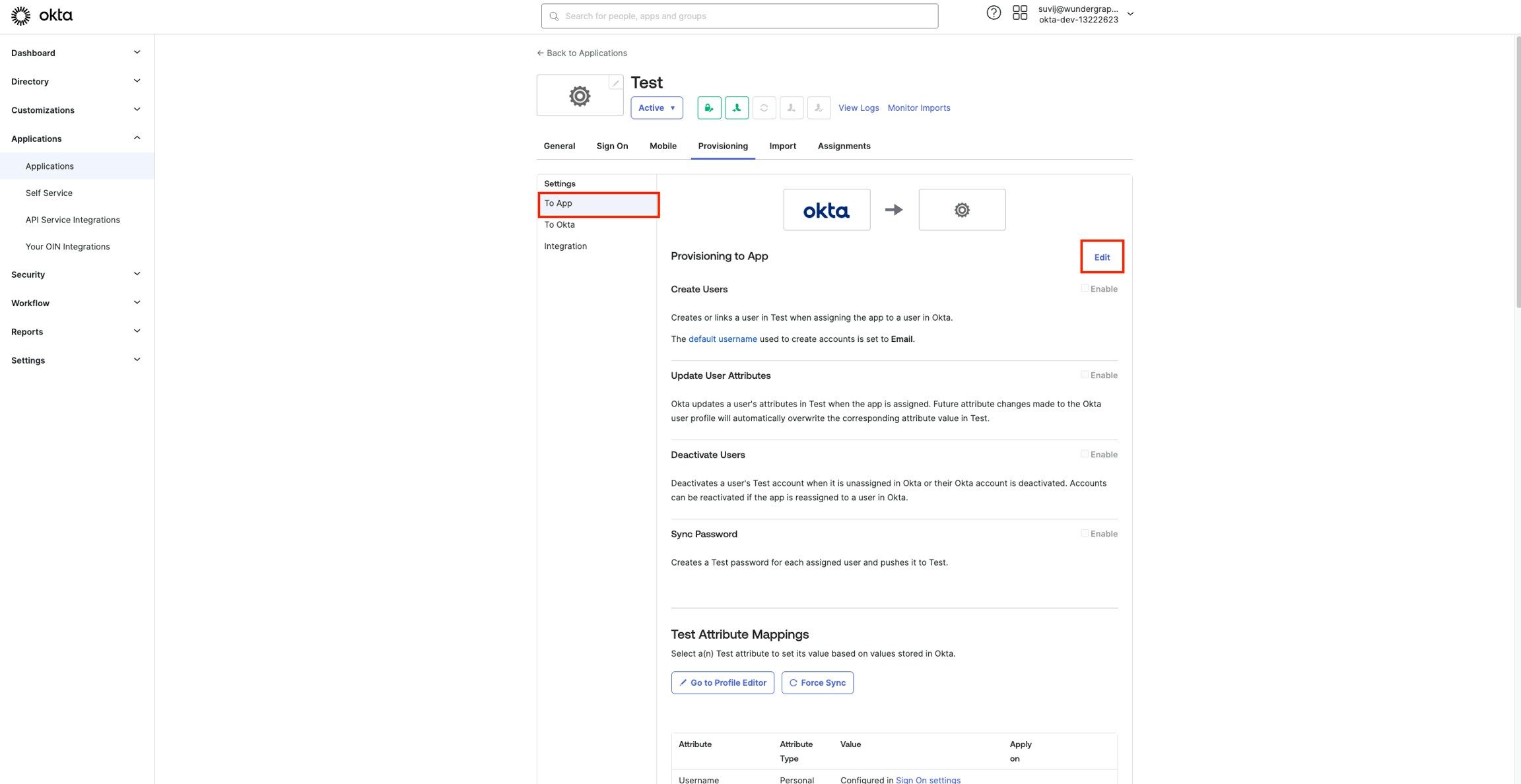
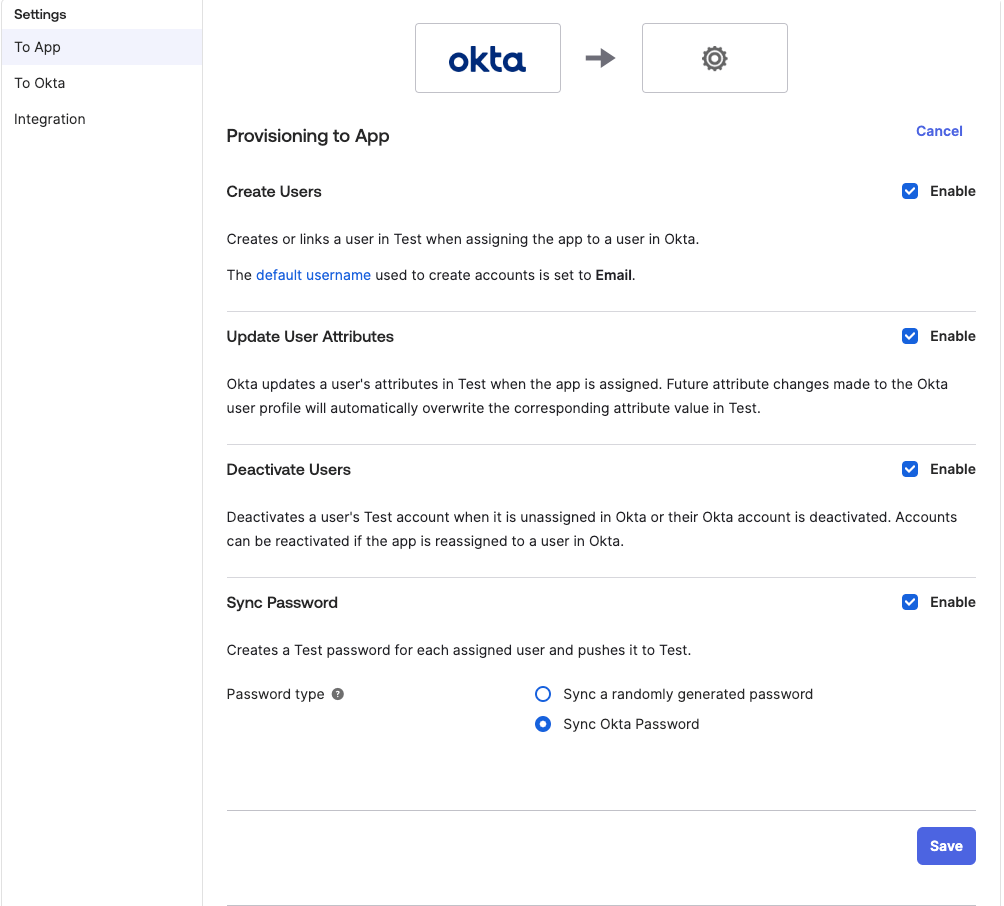
If you are using both SSO with OIDC and SCIM, please make sure that the users assigned in both apps are the same.